This article explains how to manage the users from your Paazl web app account. This means that you can use the information below to add, edit, disable and delete users. It also explains what the different Paazl user roles are allowed to do.
Note
You need to have a Master User role, to be able to use this feature on the Paazl platform.
Roles & Permissions
Before creating a user, it is advisable to be aware of what each role gives permissions to, each user has one of five possible roles, each of which gives access to different parts of the Paazl web application. The five roles are:
| Role | Code | Description |
|---|---|---|
| Master User | ROLE_MASTER | With this role, you can access everything in Paazl, also your subaccounts. You can create new users, edit their information and delete them. Typically, the owner of a webshop has this role. |
| Power user | ROLE_POWER | With this role you can access everything in Paazl apart from the settings tab and the delivery matrix. For example, you can create and print labels, export order lists and view analytics reports. However, you cannot change any settings. Typically the webshop administrator is assigned this role. |
| Advanced user | ROLE_ADVANCED | With this role, you can access overview, print labels, create new shipments and create labels. User is not allowed to use analytics, export functionalities or edit settings. This role is typically assigned to warehouse operatives who need to create new labels in the warehouse. |
| Standard user | ROLE_STANDARD | With this role you can access the order overview. You can print labels but you cannot create them. Typically warehouse operatives are assigned this role. |
| Limited user | ROLE_LIMITED | With this role you can only access the order overview and view order details. Typically, helpdesk operatives are assigned this role. |
Where to find the user settings
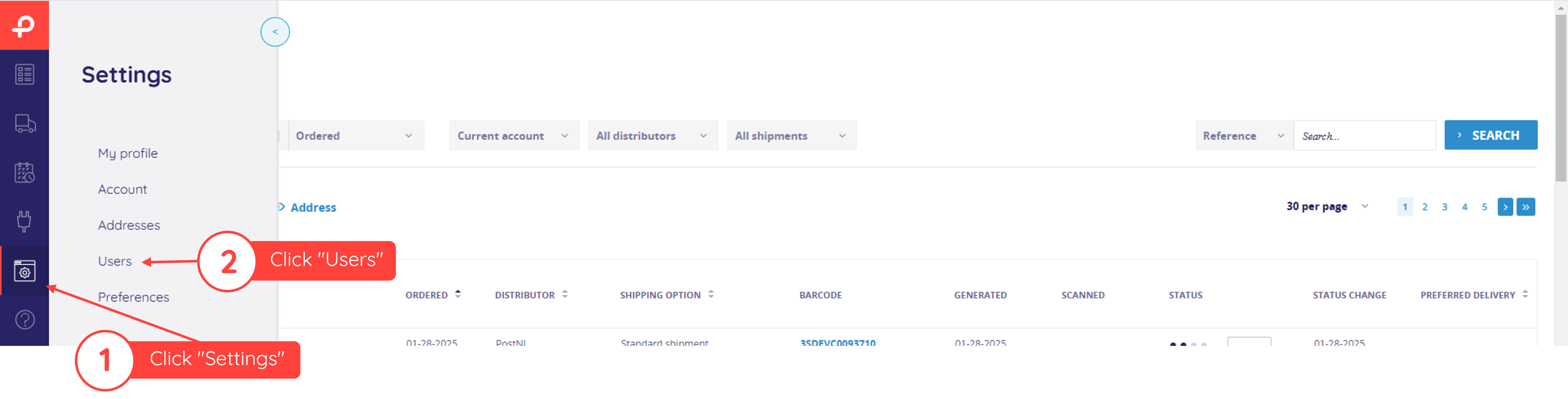
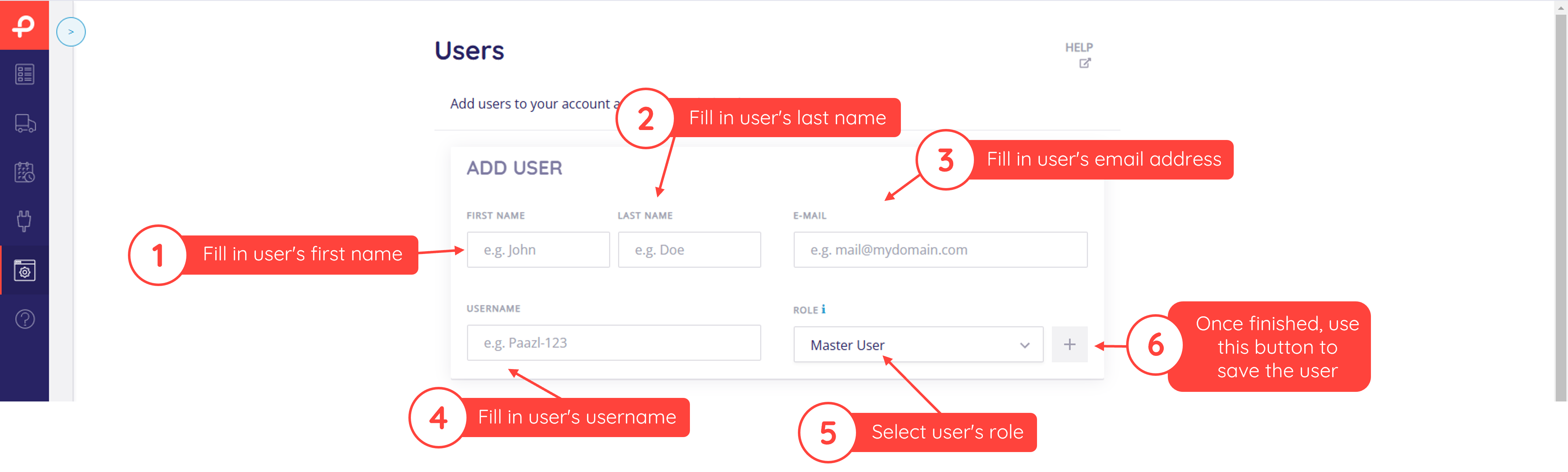
Add user
To add a user, follow the steps below.
Note
If you have a main account with subaccounts and want to be able to switch between these platforms, you only need to add the user with the 'Master User' role to the main account.
Edit user
To edit a user's details, use the button below. Once a user has been created, the user's username cannot be changed. To change a username, you will need to delete the user and create a new one.
When only one user has the "Master User" role in your webshop, that user cannot be assigned another role, because at least one user must have access to all the web app's settings.

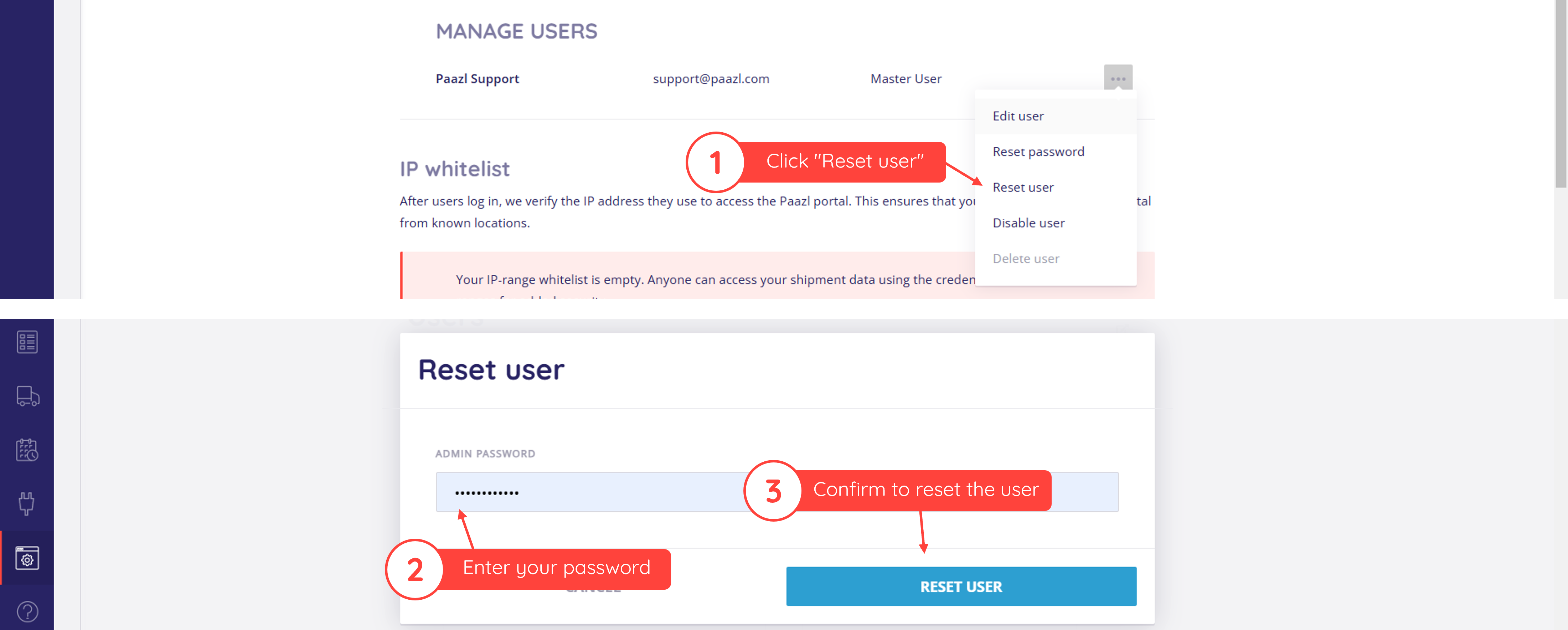
Reset user
To be able to reset the 2FA for a user, you can use the 'Reset user' function in User Management. This function sends an email to the recipient and gives them the option to reset their password and 2FA.
Disable user
If you need to disable a user's access to the platform, but do not want to permanently delete the account, use the button below.

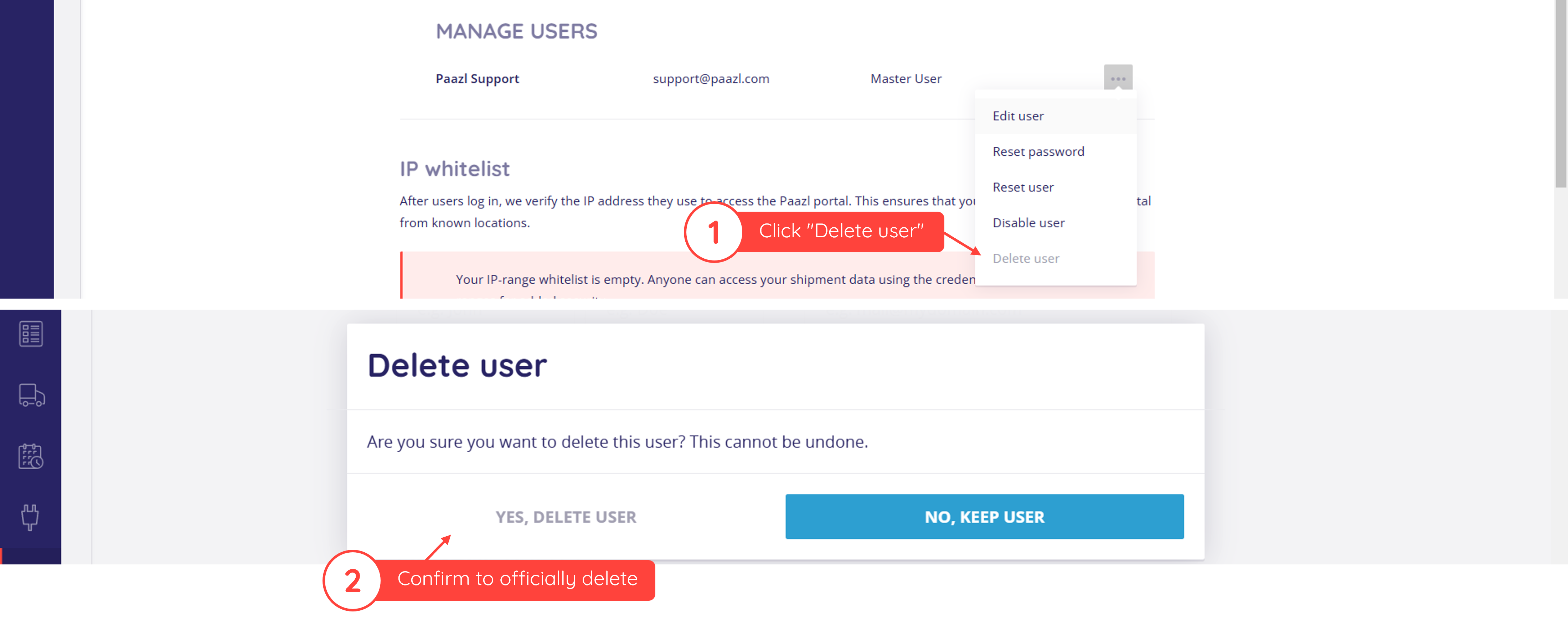
Delete user
To delete a user's details, follow the steps below.
Note
A webshop's Paazl web app account must always have at least one person with the "Master user" role. If you have several shop owners, one shop owner can delete another shop owner, but there must always be one left. Deleting the entire web app account is the only way to delete the last shop owner.
Power users, Standard users and Limited users can only be deleted by a Master user.
Was this article helpful?
That’s Great!
Thank you for your feedback
Sorry! We couldn't be helpful
Thank you for your feedback
Feedback sent
We appreciate your effort and will try to fix the article