This article explains where to find your orders and how to check their status. It also explains the various options available on the "Order overview" page of the Paazl web app.
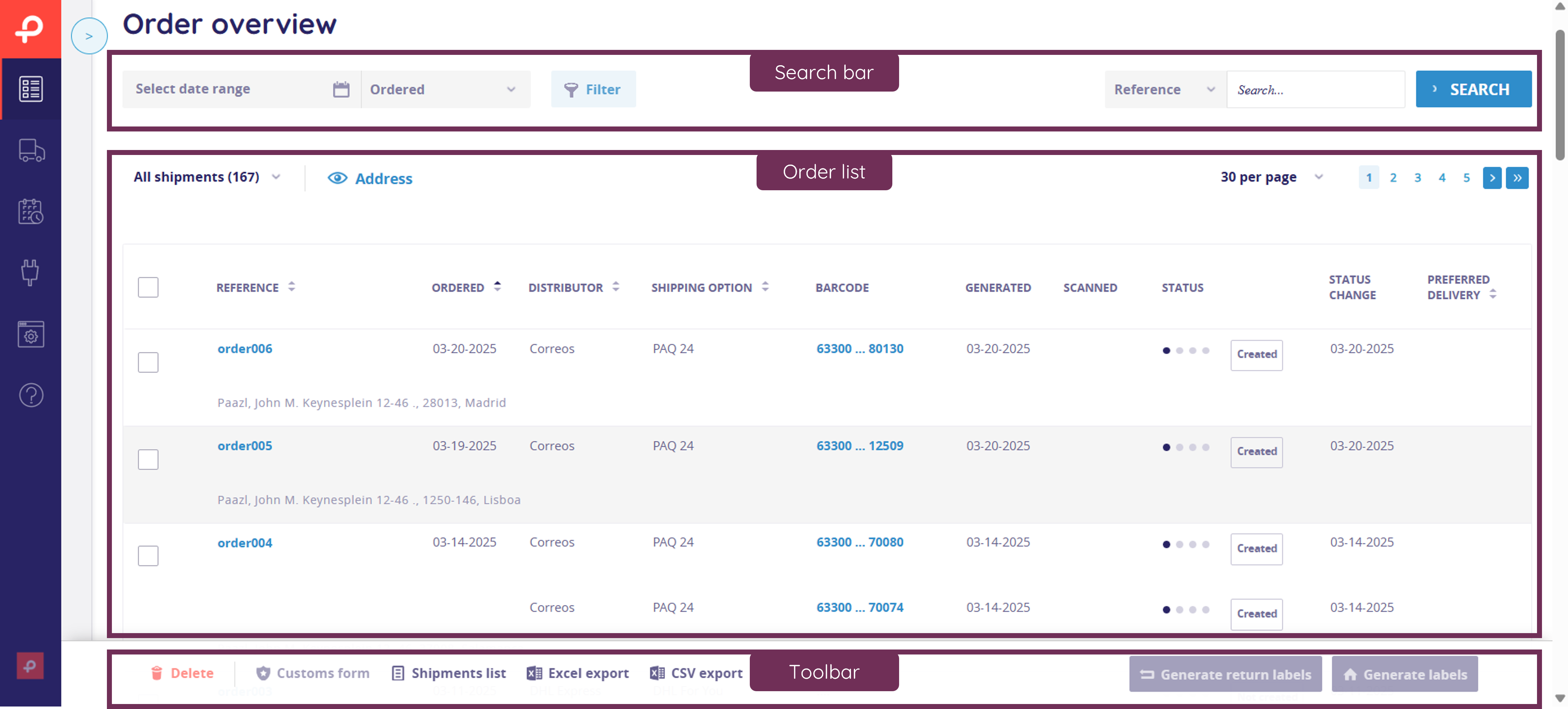
The Order overview page is the default page that appears when you first log in. It consists of three main sections:
- The search bar, which allows you to search and filter the orders you see.
- The order list, where you can view your orders.
- The tool bar, which allows you to perform various actions, including exporting your order list and generating labels.
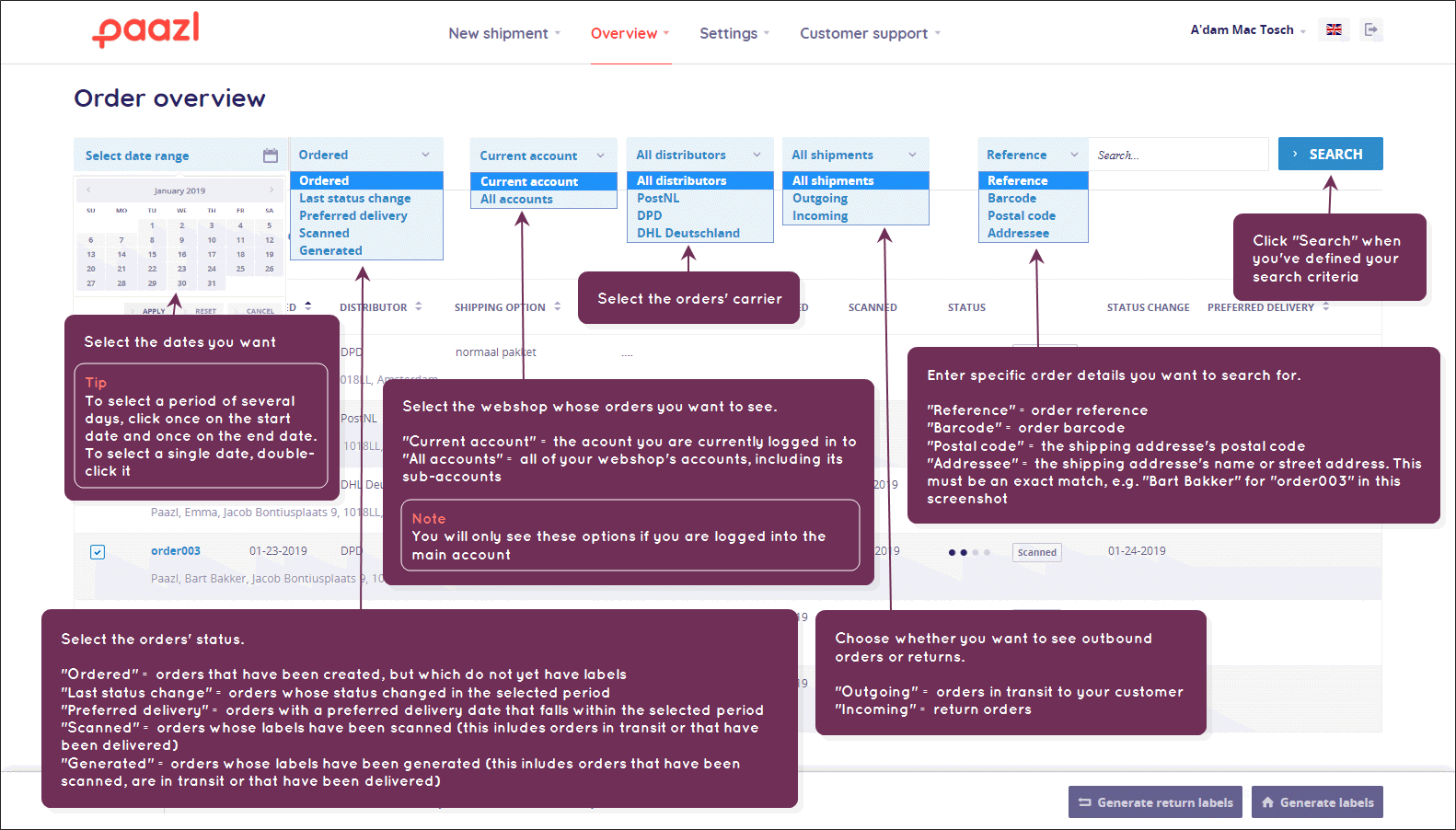
Search bar
With the search bar, you can refine your overview step by step to find exactly the orders you need. You decide which fields to fill in—everything is optional!
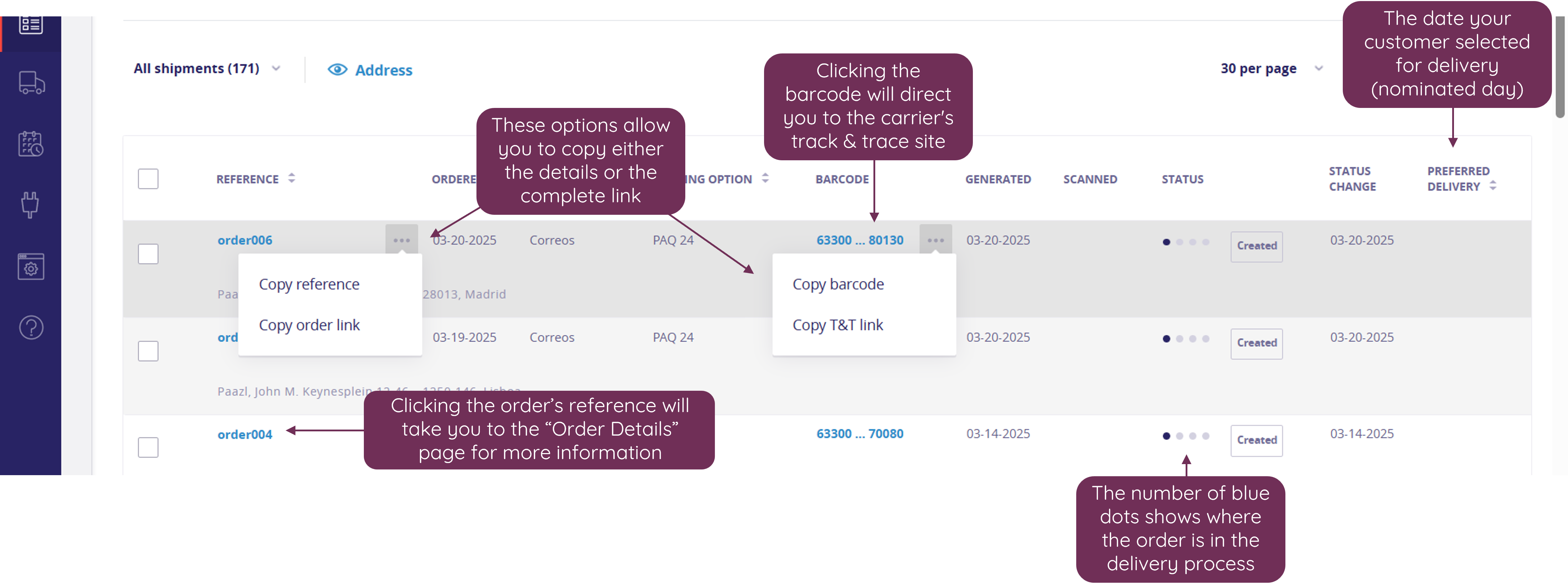
Order list
Use the order list to select the orders you need. The toolbar functions let you perform actions on all selected orders at once. To edit an order, click its reference code. If a barcode link is available, clicking it will take you directly to the carrier's track & trace page.

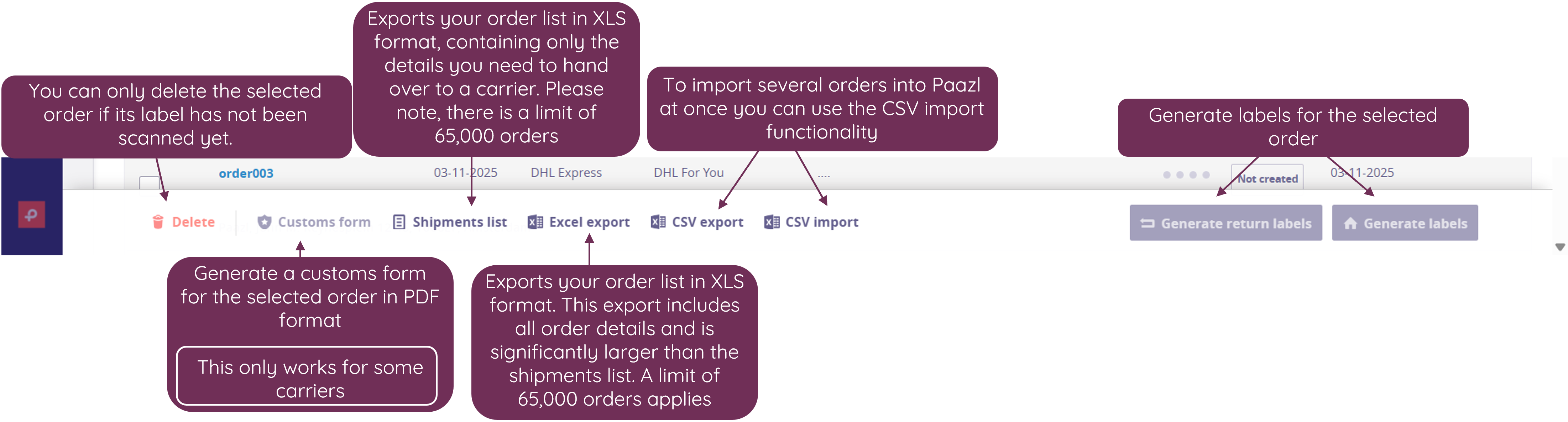
Tool bar
The toolbar offers a range of actions you can perform on individual or groups of orders, such as printing labels, deleting orders, or exporting and importing them.
Was this article helpful?
That’s Great!
Thank you for your feedback
Sorry! We couldn't be helpful
Thank you for your feedback
Feedback sent
We appreciate your effort and will try to fix the article